Approve Access Requests from Copilot or Claude with Avatier MCP
Clear your access-request queue from Microsoft Copilot Studio, Claude Code or OpenAI Codex. Avatier verifies you first, reads back five requests at a time and saves each decision on the request.

Clear your access-request queue from Microsoft Copilot Studio, Claude Code or OpenAI Codex. Avatier verifies you first, reads back five requests at a time and saves each decision on the request.
- Avatier's Pending Requests Identity Action lets approvers approve or deny the requests waiting on them from an AI assistant, with a comment on the record.
- It is high-risk, so by default it starts only if you verified in the last 5 minutes.
- Only requests routed to you appear; you hear them five at a time and decide one at a time: approve, deny or skip.
- Your decision and comment are saved under the existing Request ID; approving sends the request to the next approver or runs it after the last approval.
- One completed decision is one Secure Outcome, and failed attempts are never billed.
An approver can clear their access-request queue from Microsoft Copilot Studio, Claude Code or OpenAI Codex by running Avatier's Pending Requests Identity Action through the Avatier MCP Server. Avatier verifies the approver first, lists only the requests routed to them, and saves each approve or deny decision, with its comment, on the existing request.
The person makes each decision through the assistant. Avatier verifies who is asking, follows your approval workflows and records the result. The main Avatier MCP page describes the promise in one line: "Unlock, reset, request, approve and provision in plain language, with the same verification, policy and approvals as the Avatier console." For every action you can run this way, see What Can You Ask Avatier MCP?. To connect a client, add https://mcp.avatier.com/mcp and sign in with your Avatier account; the setup guide for Copilot Studio, Claude Code and Codex has the steps.
Why approvals belong on the request, not in an inbox
Avatier's Pending Requests page opens with the problem: "Approvals Stall When They Live in an Inbox." Every request waiting on an approver "is access someone is waiting for, or access that should not be granted at all."
A decision needs the requester, the target, the item, the justification and the approval progress in one place, plus a decision with a comment. When approvals happen by hand, the page says, "Approving over email or chat leaves no decision on the request itself and no comment an auditor can read."
Pending Requests does three things: it "lists only the requests routed to you, saves your decision on the request, and sends it to the next approver or runs it after the last approval." Your approval workflows route the requests to you, and the main Avatier MCP page lists the same work as "Review Pending Approvals."
Requesters follow the same requests from their side. Avatier's Group & User Self-Service page puts it this way: "Approval chains are defined by policy, owners sign off by push notification, and requesters track status in Pending Requests." For how people ask in the first place, see requesting access in Microsoft Teams.
How to approve or deny a request from Copilot or Claude Code
The Pending Requests action page sums up the assistant flow in one line: "In Avabot and MCP you verify, hear your requests five at a time, pick one, decide, add a comment and confirm."
- Verify. Pending Requests starts with identity verification in the conversation, using the methods your policy already allows, such as Avatier Questions, Google Authenticator, PingID Push or Identity Challenge Card™. It is high-risk, so by default it starts only if you verified in the last 5 minutes; otherwise you verify again.
- Hear your queue. Only requests currently routed to you are shown, read back five at a time.
- Pick one. You work through the queue one request at a time.
- Decide. Approve, deny or skip.
- Comment and confirm. A comment is required by default for both Approve and Deny. An admin can make it optional for each separately, and Avabot follows the same rule.
The check is specific to the conversation. On the web there is no extra check beyond your sign-in. Where Avatier has turned on sign-in reuse for the connector, an external assistant's own Avatier sign-in counts if it meets the same 5-minute rule.
In Avabot chat you can also start from the Pending Requests home tile while the home screen is in Talk or Text mode.
Here is an illustrative ask from the action page, not a customer transcript: "Show my pending requests and approve the Finance Share request for Sam Ortiz. Comment: confirmed with his manager." Avatier answers: "verify: passed · request: read back · decision: approve · comment: added."
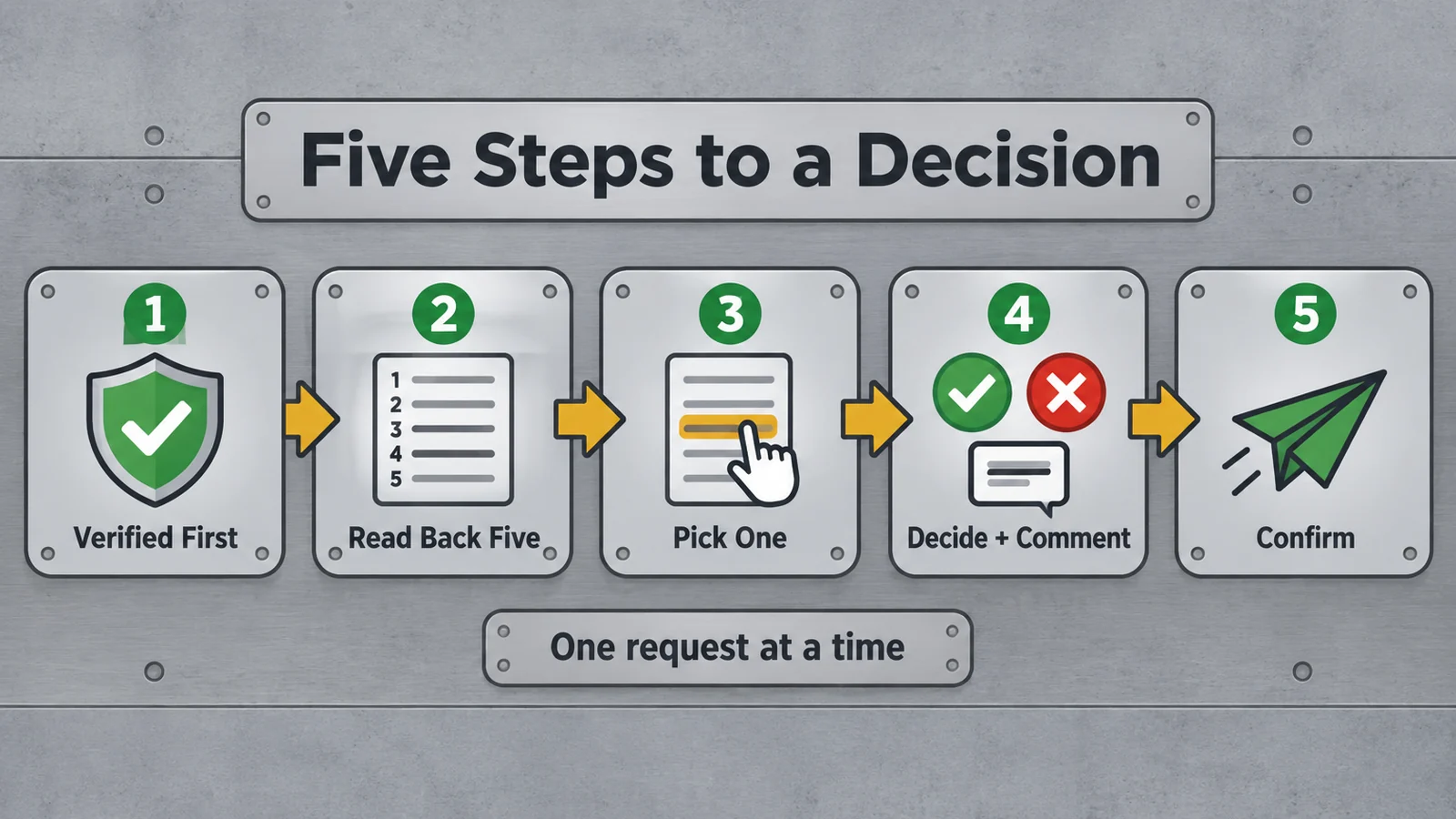 Avatier verifies the approver, reads requests back five at a time, then saves one decision with its comment per request.
On the web, Pending Requests also covers bulk work: tap Edit, select requests, then Approve or Deny with one comment. Date changes happen there too, where your admin allows them. Workflow admins can switch to Admin on the web to see every request in flight and Skip Approver, Cancel Request, Remind or Recover. Approvers who will be away can hand off their authority with Proxy My Authority.
What happens after you decide
A decision completes when it is saved, with its comment, on the existing request, under the same Request ID, and written to the audit log. Approving sends the request to the next approver, or runs it after the last approval. After the final approval, the request runs, or waits for a grantor when the target system is manual.
Pending Requests decides requests for whatever system they target, such as Active Directory, Entra ID, LDAP and apps connected through connectors. The evidence it leaves:
| Evidence | Where it lives |
|---|---|
| Your decision and comment | On the request, under its Request ID |
| Audit-log entry | The audit log (approved, denied, skipped, cancelled and so on) |
| Request status | Request History |
| Export | Excel or PDF of the queue or a request |
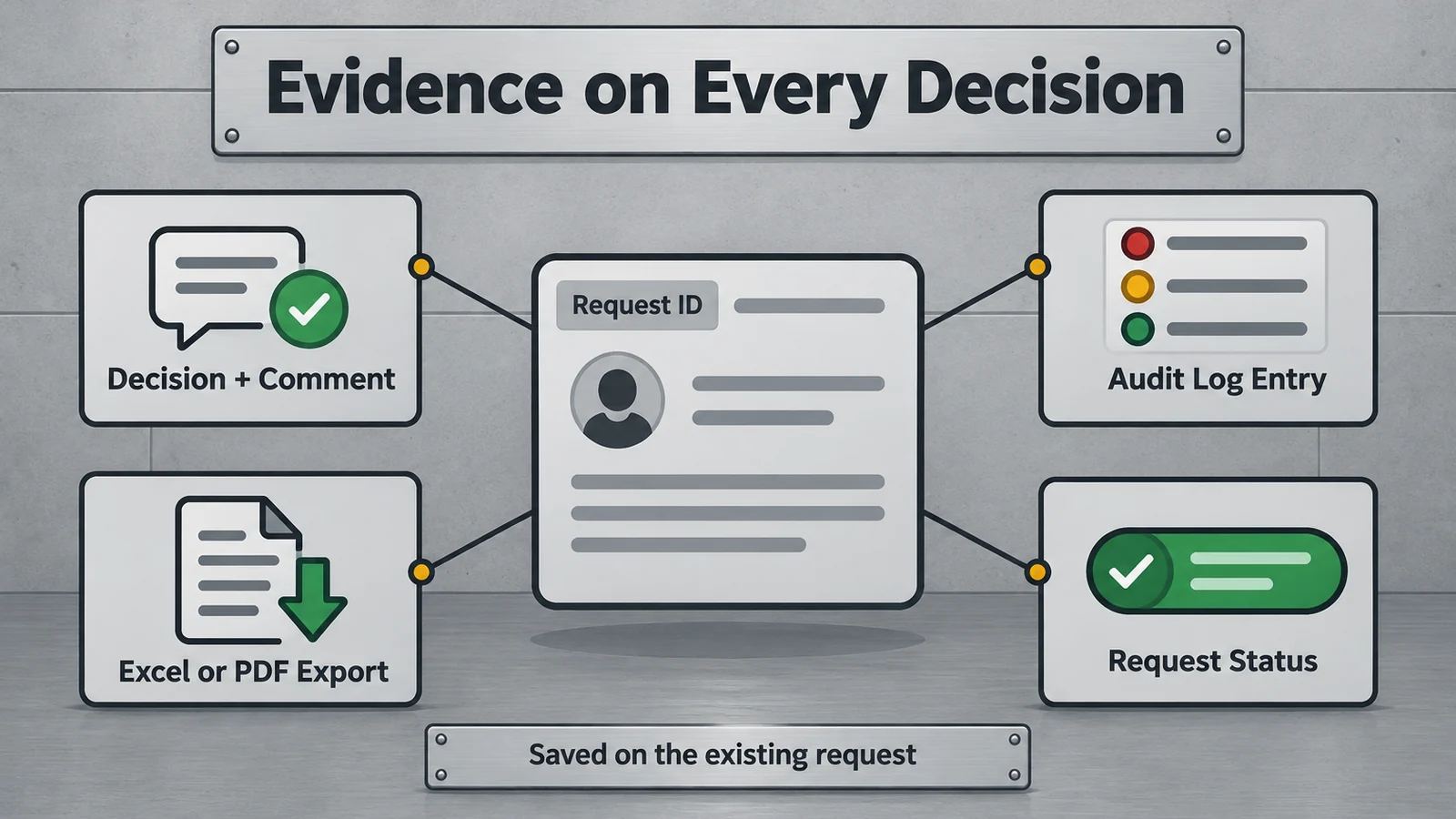 Each approve or deny decision leaves its comment on the Request ID, an audit-log entry and a Request History status; queue and request export to Excel or PDF.
As general guidance, write each comment for a reader who was not in the conversation: name who you confirmed the request with and why the access fits the role. The comment is the part of the record that explains the decision.
Reviewers read that record in the Avatier web app, where the Identity Actions page tags Request History as Web app only. For security documentation, see the Avatier Trust Center.
The guardrails behind an assistant approval
Avatier's MCP pages state the rule as "Your Assistant Asks. Avatier Decides." The main Avatier MCP and Identity Actions pages list five guardrails under that heading:
- Verified First. "Avatier verifies the person before sensitive changes, with the methods your policy already allows."
- Your Approval Workflows. "Requests follow the approval workflows your tenant already has. Each action page shows how its approvals work."
- Acts as the Signed-In User. "OAuth sign-in to your own tenant. No shared service account, no API key to manage."
- Never Makes Up Values. "The connector only sends what the person actually said, and asks when something is missing."
- Every Request Recorded. "Requests land in Request History, ready to review and export."
The Avatier MCP page's FAQ puts it plainly: "The assistant only asks. Avatier verifies the person, applies the same approvals and policy as the console, acts as the signed-in user and records every request."
For an approver, that means the decision is yours, made after verification, as you, on a request your workflow routed to you. The assistant relays what you said; when a detail is missing, the connector asks.
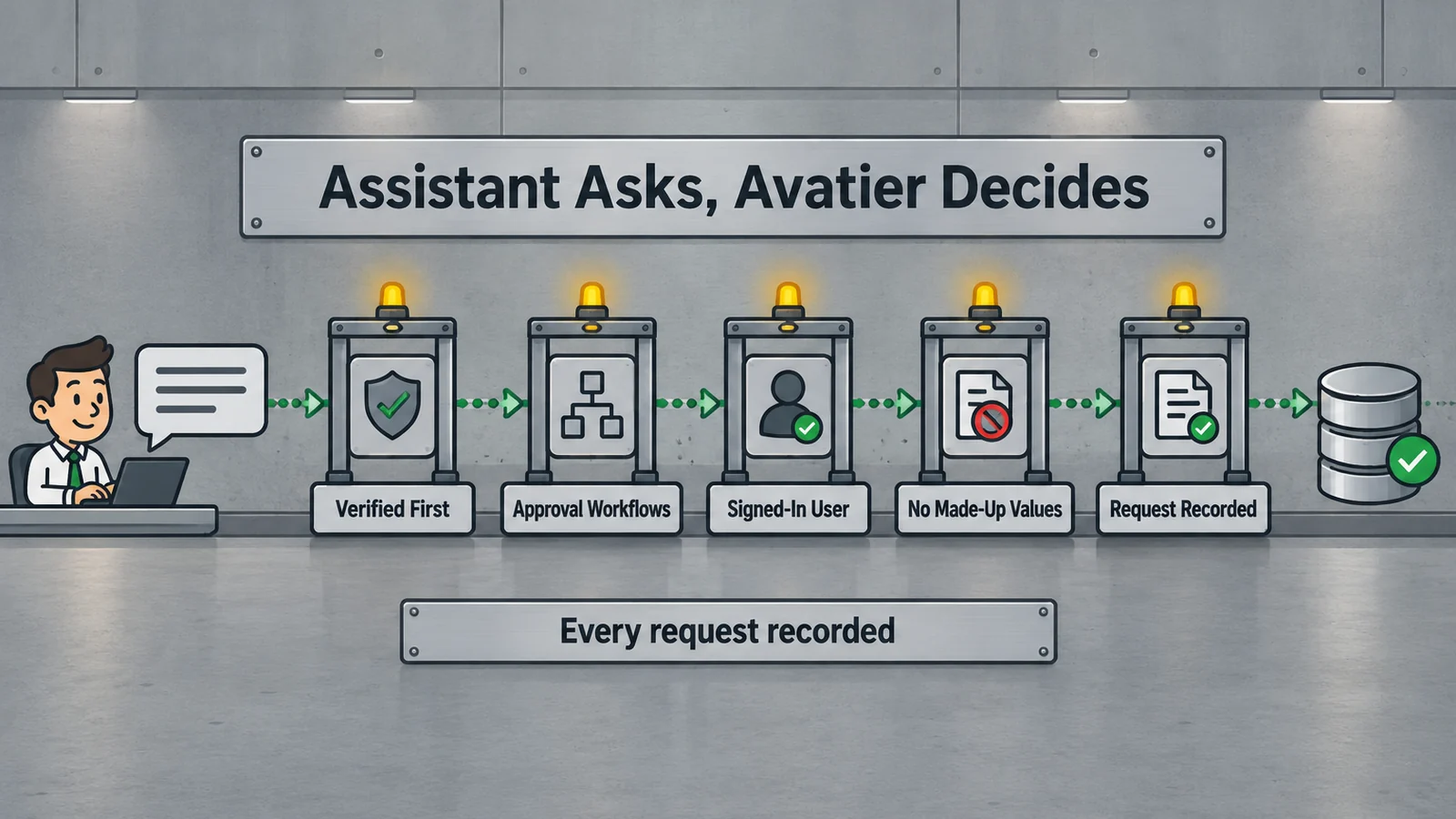 The Avatier MCP page lists five guardrails, and one URL works in every MCP client, including Microsoft Copilot Studio, Claude Code and OpenAI Codex.
For governing which assistants get access in the first place, see AI assistant access control for Copilot.
Getting started
Avabot chat and MCP require the current (.NET 10) Avatier server. Once your assistant is connected, ask it to show your pending requests.
Under Pay Per Identity Action™, one completed decision is one Secure Outcome, and failed attempts are never billed. The program is in invitation-only preview: getting started is free, Deployment Services are included, and there is a 45-day money-back guarantee.
For the action itself, see the Pending Requests page, and for setup steps, see the Avatier MCP Server page. For the platform and the preview, see the Avatier Identity Anywhere 2027™ site. For password and MFA controls, see Credential Governance™. For the company, see avatier.com.
Microsoft Copilot Studio, Claude Code, OpenAI Codex and the other assistants named here are trademarks of their respective owners. No partnership with or endorsement by any third party is implied.
ABOUT THE AUTHOR

More from MCP & Identity Actions

Connect Avatier MCP to Copilot Studio, Claude Code, Codex and Cursor
Add https://mcp.avatier.com/mcp to Microsoft Copilot Studio, Claude Code, OpenAI Codex or Cursor, sign in with OAuth, and run Avatier Identity Actions from chat. Steps for each client.

What Can You Ask Avatier MCP? Identity Actions by Category
Avatier MCP Server gives your AI assistant 37 of 56 Identity Actions: unlock, reset a forgotten password, request access, rehire, disable an account, add group members. Each category, with example asks.

Delegate Approval Authority While Away with Avatier Proxy My Authority
How to hand your access approvals to a named proxy for a set window, with a record of every change, and how to take an approver off workflows for good when their job changes.