Move AD Users Between OUs from Copilot or Claude with Avatier MCP
Move an Active Directory user to another OU from Microsoft Copilot Studio, Claude Code or OpenAI Codex. Avatier verifies you, accepts only an existing OU, routes approval and stores the old OU.

Move an Active Directory user to another OU from Microsoft Copilot Studio, Claude Code or OpenAI Codex. Avatier verifies you, accepts only an existing OU, routes approval and stores the old OU.
- Avatier's Move OU Identity Action moves a person's Active Directory account to another OU, with a justification on the record.
- From Copilot Studio, Claude Code or OpenAI Codex you verify, name the person, pick the OU from matches, give a reason and confirm.
- Only an existing OU is accepted: text that doesn't match one is rejected, and the current OU is shown first.
- Your Lifecycle Management approval workflow decides who approves, and the approver sees the current and new OU.
- The move runs once approved and stores the previous OU; one completed OU move is one Secure Outcome.
Moving a user to another OU in Active Directory relocates their account from one organizational unit to another, and because OUs are where Group Policy and delegated administration are applied, the move can change which policies reach the account and which administrators control it. With Avatier's Move OU Identity Action, you can ask for that move from Microsoft Copilot Studio, Claude Code or OpenAI Codex, and Avatier files it as a request with a justification, routes it through your approval workflow and stores the previous OU when it runs.
Avatier's Move OU page states the action in one line: "Move a person's Active Directory account to another OU, now or on a date, with a justification on the record." Scheduling a date is a web-app option; from an assistant, the move runs as soon as it is approved. For the full list of what you can ask through the Avatier MCP Server, see What Can You Ask Avatier MCP?.
What an OU move changes in Active Directory
Microsoft's guidance on OU design explains why the move matters. "OUs are created for a specific purpose, such as the delegation of administration, the application of Group Policy, or to limit the visibility of objects." Microsoft also says "OUs represent administrative boundaries and enable you to control the scope of authority of data administrators." To apply Group Policy to a select set of users, you "add those users or resources to an OU, and then apply Group Policy to that OU."
Done by hand, the move is one PowerShell command. Microsoft documents Move-ADObject as moving "an object or a container of objects from one container to another or from one domain to another within the same forest," with a TargetPath that "must be the path to a container or organizational unit."
What the command leaves out is the context. Avatier's page puts the gap plainly: "Moving accounts between OUs by hand leaves no request, no approval and no record of where the account was before." Its answer is that "where an account sits should follow a request," because the move "is a change to the directory, so who asked, why and where it went belong on the record."
For OU moves alongside enabling, disabling, renaming and the other everyday account changes, see Active Directory User Management, Governed with Avatier.
How to request an OU move from Copilot or Claude Code
First, connect your assistant to the server URL https://mcp.avatier.com/mcp and sign in with your Avatier account; the setup guide for Copilot Studio, Claude Code and Codex has the client-by-client steps. Then ask. The Move OU page sums up the assistant flow: "In Avabot and MCP you verify, name the person, pick from the matching OUs, give a justification and confirm."
- Verify. Move OU starts with identity verification in the conversation, "with the methods your policy already allows."
- Name the person. Name someone you're authorized to request for.
- Pick the OU. The current OU is shown. Type part of the destination OU's name and pick it from the matching list. Text that doesn't match an existing OU is rejected.
- Give a justification. The reason goes on the record with the request.
- Confirm. The move is filed as a request and goes to your approval workflow.
Here is the page's own illustrative example, not a customer transcript: "Move Taylor Brooks to the Sales OU. Justification: joined the regional sales team." Avatier answers: "verify: passed · account: Active Directory · OU: picked from matches · request: submitted, may need approval."
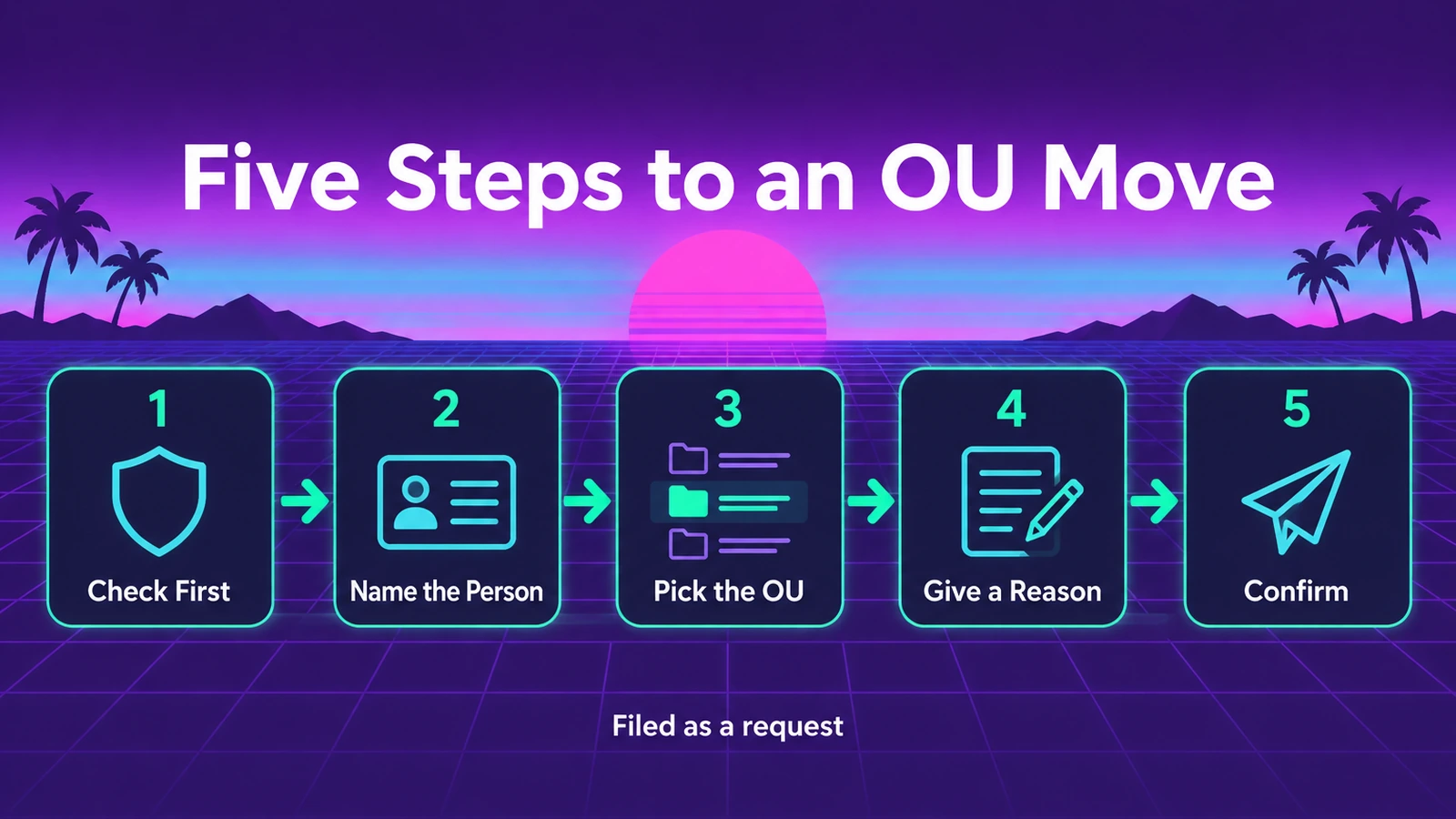 From Copilot Studio, Claude Code or Codex: verify, name the person, pick an existing OU, give a reason and confirm the request.
In Avabot chat and MCP, Move OU works on Active Directory accounts and runs as soon as it is approved. To schedule a move for a date, use the web app, where you choose Update Now, a date and time, or a number of days, hours and minutes from now.
Who approves the move, and what they see
Avatier's MCP pages state the rule as "Your Assistant Asks. Avatier Decides." For Move OU, "Your Lifecycle Management approval workflow decides who approves, with identity verification first in Avabot and MCP, where every move is filed as a request."
On the workflow path, the page says the move "is recorded in Request History with a Request ID and goes through your Lifecycle Management approval workflow, where the approver sees the current and new OU." Because the destination had to be an existing OU picked from the matches, the approver reviews a real move between two named places, and the requester's justification is on the record.
The broader guardrails come from the main Avatier MCP page:
- Verified First. "Avatier verifies the person before sensitive changes, with the methods your policy already allows."
- Your Approval Workflows. "Requests follow the approval workflows your tenant already has. Each action page shows how its approvals work."
- Acts as the Signed-In User. "OAuth sign-in to your own tenant. No shared service account, no API key to manage."
- Never Makes Up Values. "The connector only sends what the person actually said, and asks when something is missing."
- Every Request Recorded. "Requests land in Request History, ready to review and export."
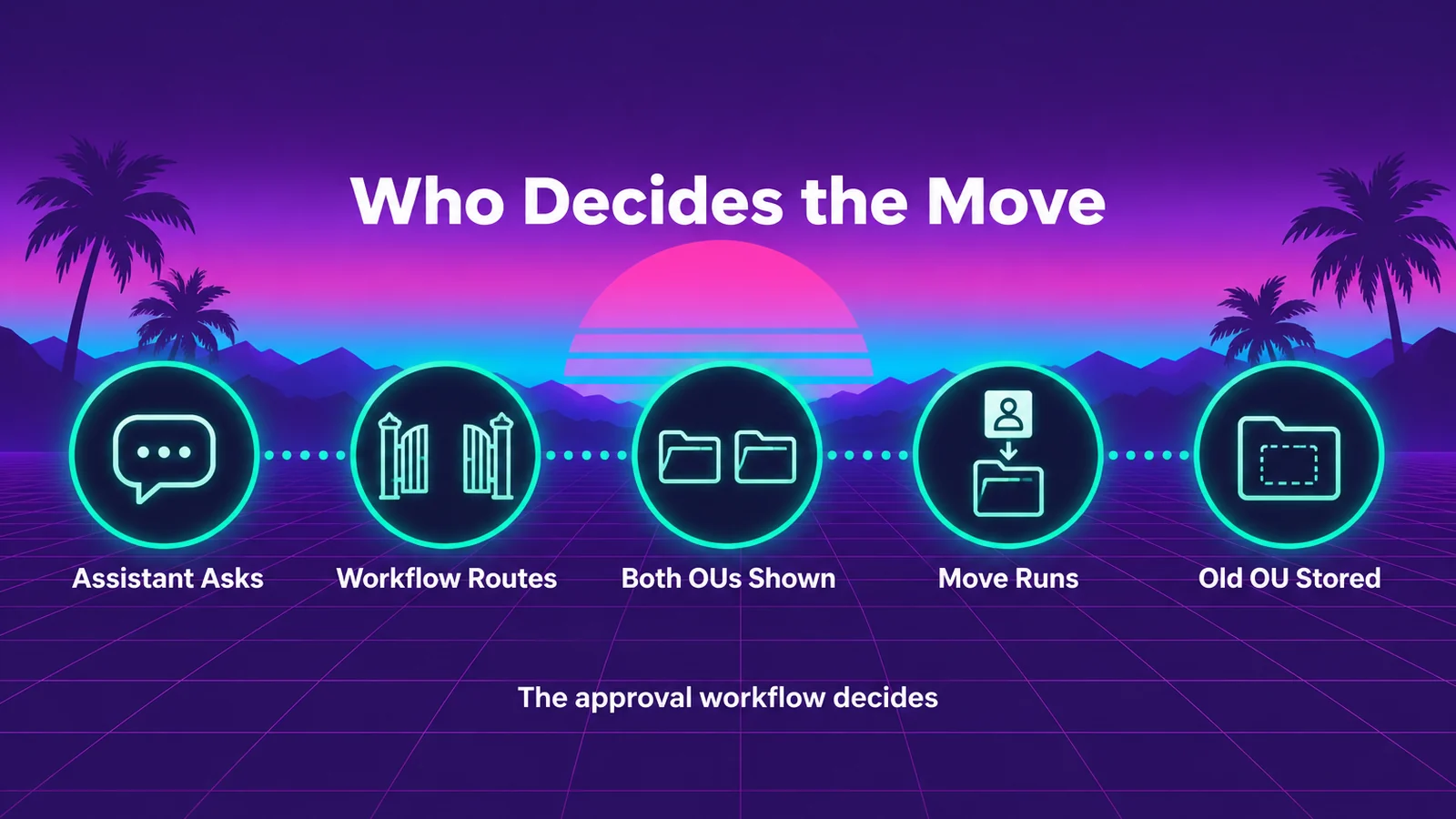 The assistant files the request; your Lifecycle Management approval workflow decides, and the approver sees both the current and the new OU.
If you approve requests yourself, see Approve Access Requests from Copilot or Claude with Avatier MCP for deciding the requests your approval workflows route to you.
The record a completed OU move leaves
Avatier counts the move as done only when it actually happens. "An OU move completes when the approved request runs at the scheduled time: the account moves to the new OU and its previous OU is stored." In Avabot chat and MCP, that time is as soon as the request is approved.
The evidence the Move OU page lists:
| Evidence | What it shows |
|---|---|
| Request ID in Request History | The request, filterable by Move OU and exportable |
| The approver's view | The current OU and the new OU |
| Activity-log entry | The move recorded in the activity log |
The stored previous OU answers the question a manual move leaves open: where the account sat before. Request History is part of the Avatier web app, where reviewers filter and export the requests your assistant filed.
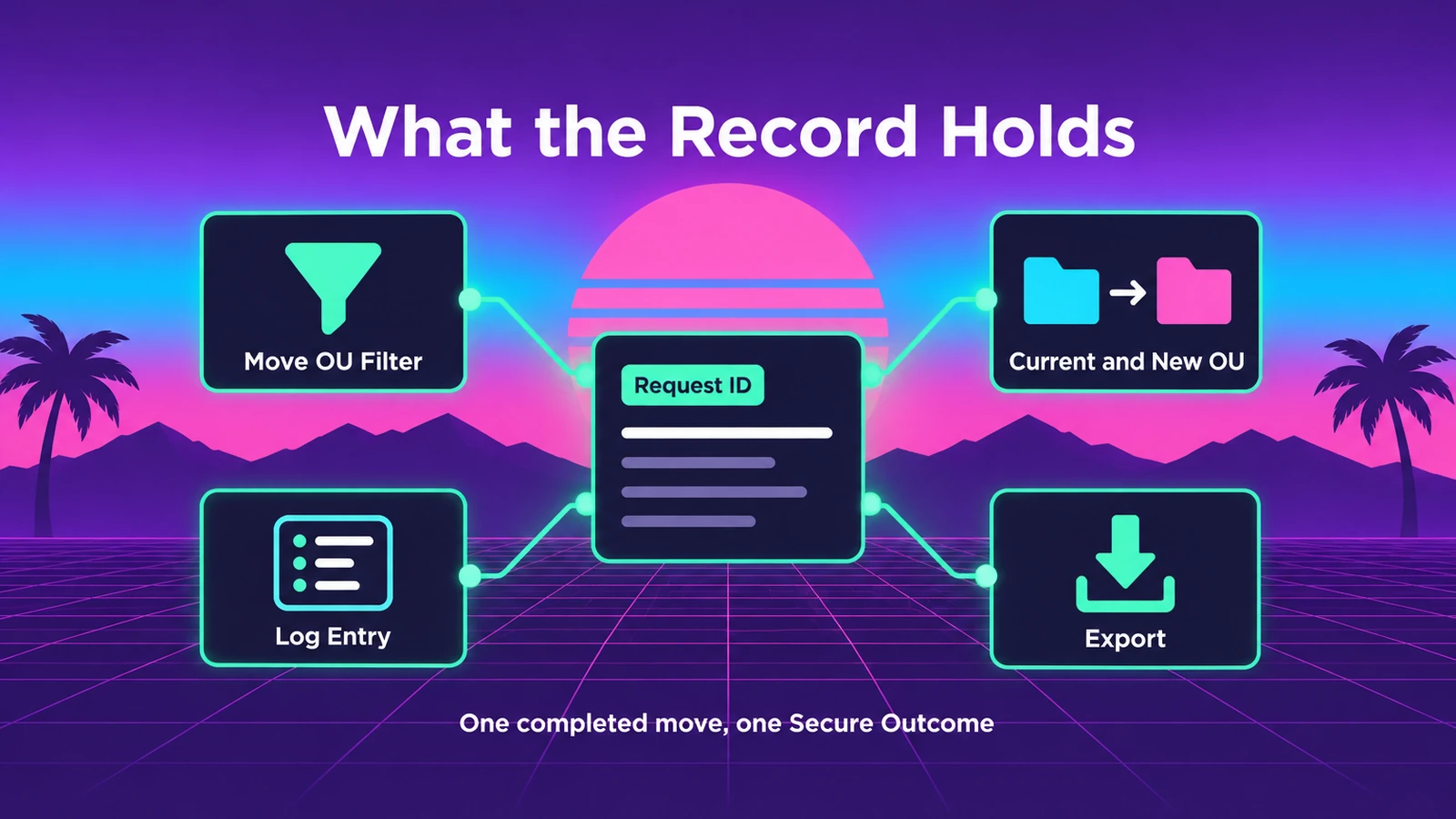 A completed move leaves a Request ID in Request History, the approver's view of both OUs and an activity-log entry.
As general guidance, write each justification for a reader who wasn't in the conversation: name the change in role or team that makes the new OU the right place. For security documentation, see the Avatier Trust Center.
Getting started
Avabot chat and MCP require the current (.NET 10) Avatier server. Once your assistant is connected, ask it to move a person's Active Directory account to the OU you need, with a justification.
Under Pay Per Identity Action™, "One completed OU move = one Secure Outcome; failed attempts are never billed." The program is in invitation-only preview, and pricing is shared with qualified organizations. Getting started is free, Deployment Services are included, and there is a 45-day money-back guarantee.
For the action itself, see the Move OU page, and for setup steps, see the Avatier MCP Server page. For the platform and the preview, see the Avatier Identity Anywhere 2027™ site. For password and MFA controls, see Credential Governance™. For the company, see avatier.com.
Microsoft Copilot Studio, Claude Code, OpenAI Codex and the other assistants named here are trademarks of their respective owners. No partnership with or endorsement by any third party is implied.
ABOUT THE AUTHOR

More from MCP & Identity Actions

Approve Access Requests from Copilot or Claude with Avatier MCP
Clear your access-request queue from Microsoft Copilot Studio, Claude Code or OpenAI Codex. Avatier verifies you first, reads back five requests at a time and saves each decision on the request.

Connect Avatier MCP to Copilot Studio, Claude Code, Codex and Cursor
Add https://mcp.avatier.com/mcp to Microsoft Copilot Studio, Claude Code, OpenAI Codex or Cursor, sign in with OAuth, and run Avatier Identity Actions from chat. Steps for each client.

What Can You Ask Avatier MCP? Identity Actions by Category
Avatier MCP Server gives your AI assistant 37 of 56 Identity Actions: unlock, reset a forgotten password, request access, rehire, disable an account, add group members. Each category, with example asks.