Disable or Enable AD Accounts from Copilot with Avatier MCP
Disable a person's AD accounts, or turn them back on, from Copilot Studio, Claude Code or Codex. Avatier verifies you, files an approval request with a reason and records it with a Request ID.

Disable a person's AD accounts, or turn them back on, from Copilot Studio, Claude Code or Codex. Avatier verifies you, files an approval request with a reason and records it with a Request ID.
- Avatier's Disable Account Identity Action turns off a person's accounts on the systems you pick, with a reason and a justification on the record.
- From Copilot Studio, Claude Code or OpenAI Codex you verify, name the person, give a reason, pick systems and confirm.
- In Avabot and MCP, Disable Account is high-risk: by default it starts only if you verified in the last 5 minutes, and you can't disable your own account.
- In Avabot chat and MCP every disable or enable is filed as an approval request that runs as soon as it is approved.
- Enable Account turns the accounts back on, and each request leaves a Request ID in Request History and an activity-log entry.
Disabling an Active Directory account switches it off, and enabling it turns the same disabled account back on; in PowerShell those are Disable-ADAccount and Enable-ADAccount. With Avatier's Disable Account and Enable Account Identity Actions, you can ask for either change from Microsoft Copilot Studio, Claude Code or OpenAI Codex, and Avatier verifies you, files an approval request with your justification and records it with a Request ID.
Avatier's Disable Account page puts the action in one line: "Turn off a person's accounts on the systems you pick, now or on a date, with a reason and a justification on the record." For everything else you can ask through the Avatier MCP Server, see What Can You Ask Avatier MCP?.
What Disable-ADAccount does, and what it leaves out
Microsoft documents the command plainly: the Disable-ADAccount cmdlet "disables an Active Directory user, computer, or service account," and Enable-ADAccount "enables an Active Directory user, computer, or service account." You name the account with the Identity parameter, by distinguished name, GUID, security identifier or SAM account name, so a single line such as Disable-ADAccount -Identity PattiFul switches off one account.
What the command leaves out is the request and approval record. Avatier's page names the gap: "Disabling accounts by hand, one system at a time, makes it easy to miss one, and leaves no request or approval record behind." The Enable Account page makes the same point in reverse: "Who turned an account back on, why, and on which systems belongs on the record."
For the whole leaver program around a termination, from killing sessions to reassigning owned data, see Automated Deprovisioning: Closing Access When People Leave.
How to disable a person's accounts from Copilot Studio or Claude Code
First, connect your assistant to the server URL https://mcp.avatier.com/mcp and sign in with your Avatier account; the setup guide for Copilot Studio, Claude Code, Codex and Cursor has the client-by-client steps. Then ask. The page sums up the assistant flow: "In Avabot and MCP you verify, name the person, pick systems, give a reason and a justification, and confirm."
- Verify. Disable Account starts with identity verification in the conversation, "with the methods your policy already allows." It is high-risk, so by default it starts only if you verified in the last 5 minutes; otherwise you verify again.
- Name the person. Pick someone you are authorized to request for. You can't disable your own account.
- Give a reason and a justification. The reasons are Termination, Leave of Absence or Layoff, and chat also offers Orphan. The reason is recorded with the request.
- Pick the systems. Choose which of the person's systems to turn off. Systems marked "never disable" on their connector are not offered.
- Confirm. The disable is filed as an approval request.
Here is the page's own illustrative example, not a customer transcript: "Disable Chris Vance's accounts. Reason: Termination. Justification: last day was Friday." Avatier answers: "verify: passed · reason: Termination · systems: picked from list · request: submitted for approval."
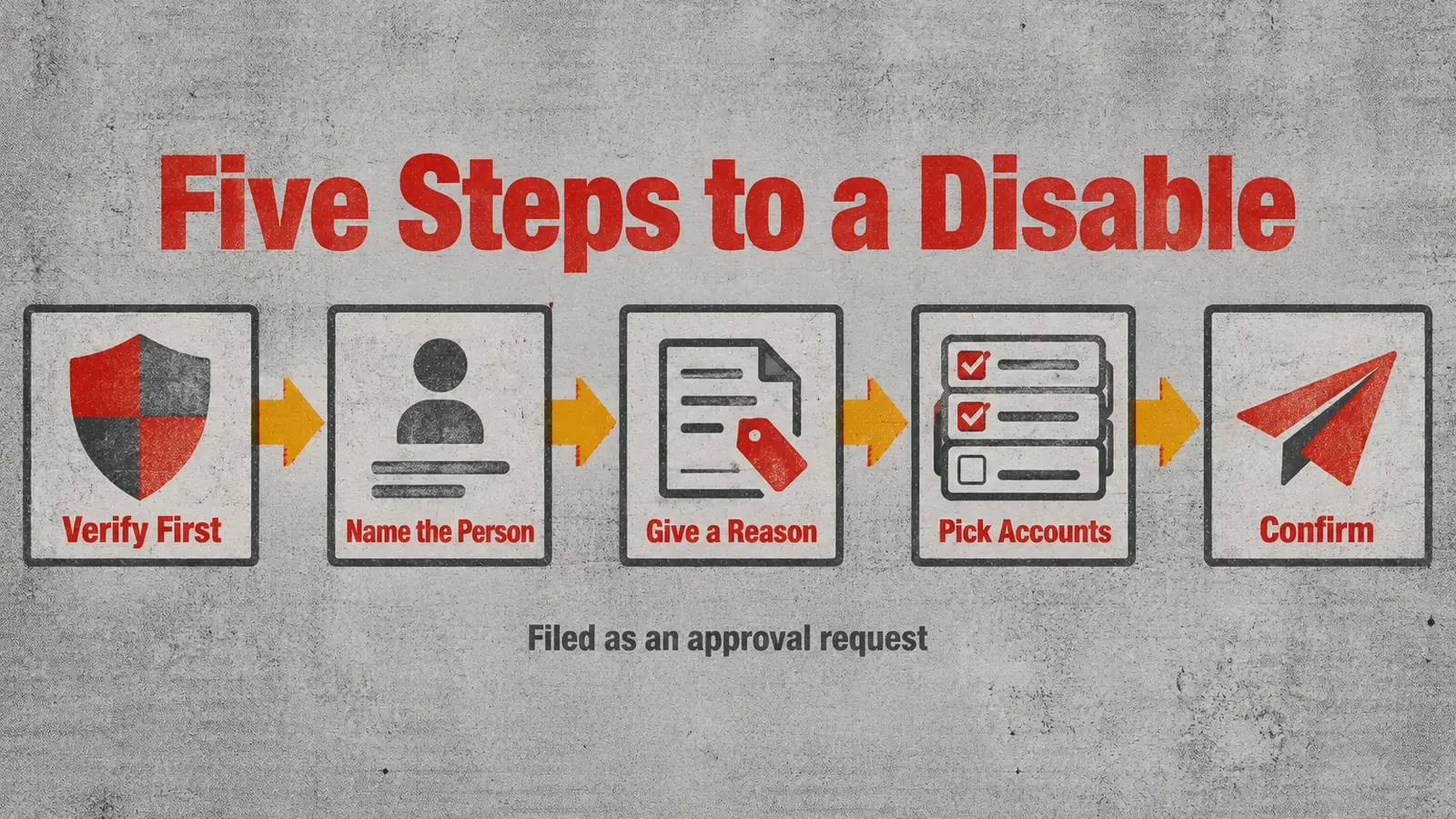 From Copilot Studio, Claude Code or Codex: verify, name the person, give a reason, pick the systems and confirm the approval request.
Who approves the disable, and when it runs
Avatier's MCP pages state the rule as "Your Assistant Asks. Avatier Decides." For this action, "the approval workflow set up for each system decides who approves, with identity verification first in Avabot and MCP, where every disable is filed as an approval request." On submit, the request "is recorded in Request History with a Request ID and goes through the Lifecycle Management approval workflow for each selected system."
In chat, every disable runs as soon as it is approved. Scheduling and skipping workflow are web-app options: on the web you choose Disable Now or a date and time, and a workflow admin with Account Terminator rights who skips workflow disables the account at once, with no request, and sees a result for each system.
When the request runs, Active Directory can get more than a switched-off account. Connector settings can add clean-up steps, "such as moving the account to a set OU, removing group memberships or hiding the Exchange mailbox." The person asking gives the reason and the systems, and the connector settings decide the clean-up.
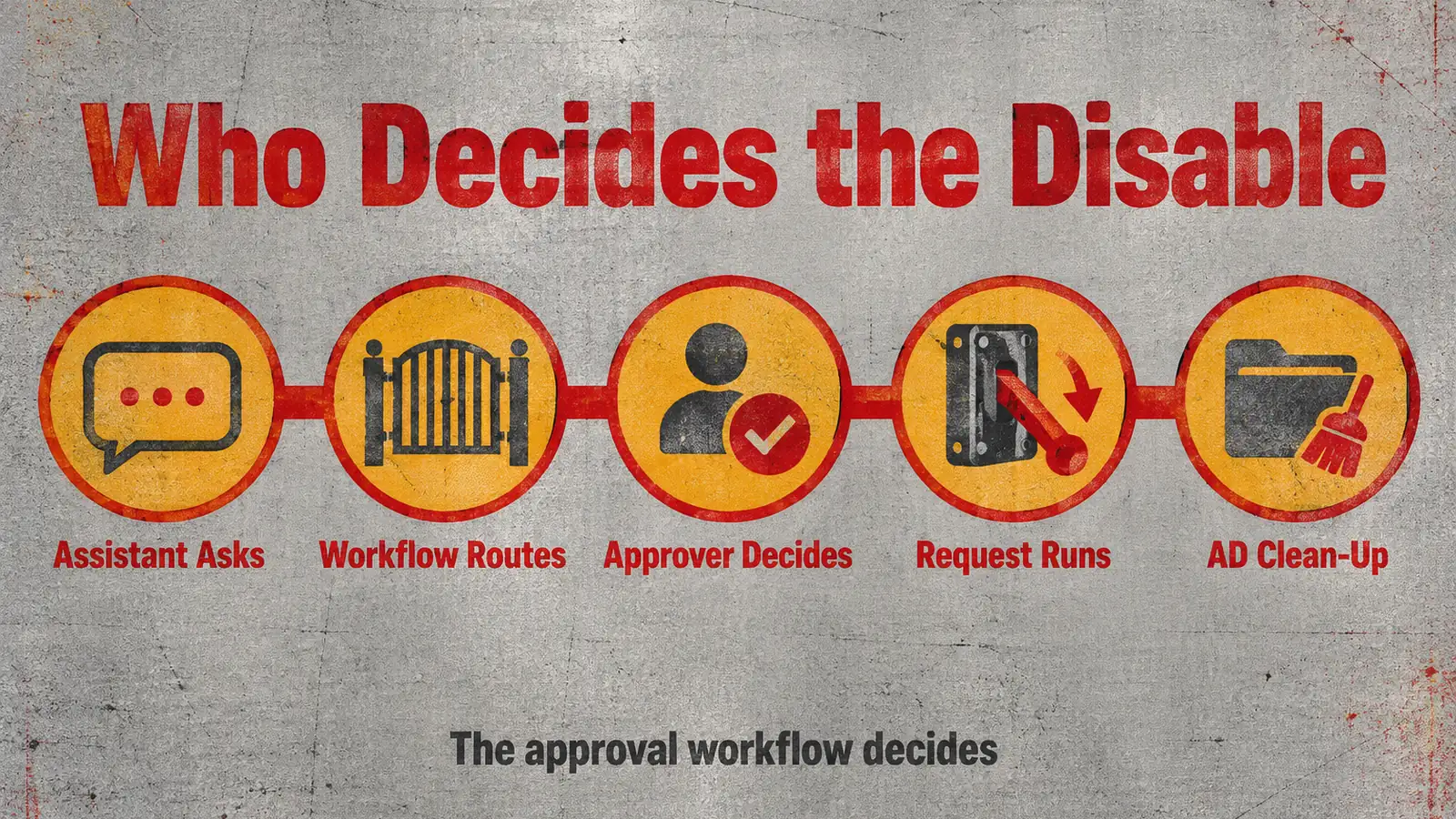 The assistant files the request; the approval workflow for each system decides, and connector settings add any Active Directory clean-up steps.
The main Avatier MCP page adds the guardrail behind that: Your Approval Workflows, "Requests follow the approval workflows your tenant already has." The assistant also Acts as the Signed-In User, with "OAuth sign-in to your own tenant. No shared service account, no API key to manage."
Turning accounts back on with Enable Account
Enable Account mirrors the disable: "Turn a disabled account back on, on the systems you pick, with a justification on the record." In chat you verify, name the person, pick systems from the list, give a justification and confirm the read-back. The person's systems are listed, all selected to start, and only the ones left selected are enabled. You can't enable your own account.
In Avabot chat and MCP, Enable Account "always files an approval request that runs as soon as it is approved." The enable completes "on each system whose connector supports enabling."
Enabling and unlocking are separate actions: "Enable turns a disabled account back on. An account locked by failed sign-ins is handled by Unlock Account." And a Leave of Absence disable has no built-in end: choosing that reason schedules no automatic re-enable, so you run Enable Account when the person returns.
For leave and rehire driven from HR data, where access is suspended during a leave and restored on return, see Leave of Absence and Rehire: Suspend and Restore Access with Avatier.
What Avatier ships, and the record it leaves
| Disable Account | Enable Account | |
|---|---|---|
| What it does | Turns off accounts on the systems you pick | Turns a disabled account back on, on the systems you pick |
| On the record | A reason and a justification | A justification |
| Verification in chat | High-risk: by default, verified in the last 5 minutes | Identity verification in the conversation |
| In Avabot chat and MCP | An approval request that runs once approved | An approval request that runs once approved |
| Completes when | The selected accounts are disabled; on AD, connector settings can add clean-up steps | The selected accounts are enabled, on each system that supports enabling |
| Request History filter | Disable Account | Enable Account |
Both pages list the same core evidence: "A Request ID in Request History" with PDF or Excel export, and "An activity-log entry." Disable Account adds "Audit reports such as Lifecycle Management requests submitted and approved, and Account Terminator accounts disabled." Enable Account adds "The request in approvers' pending lists."
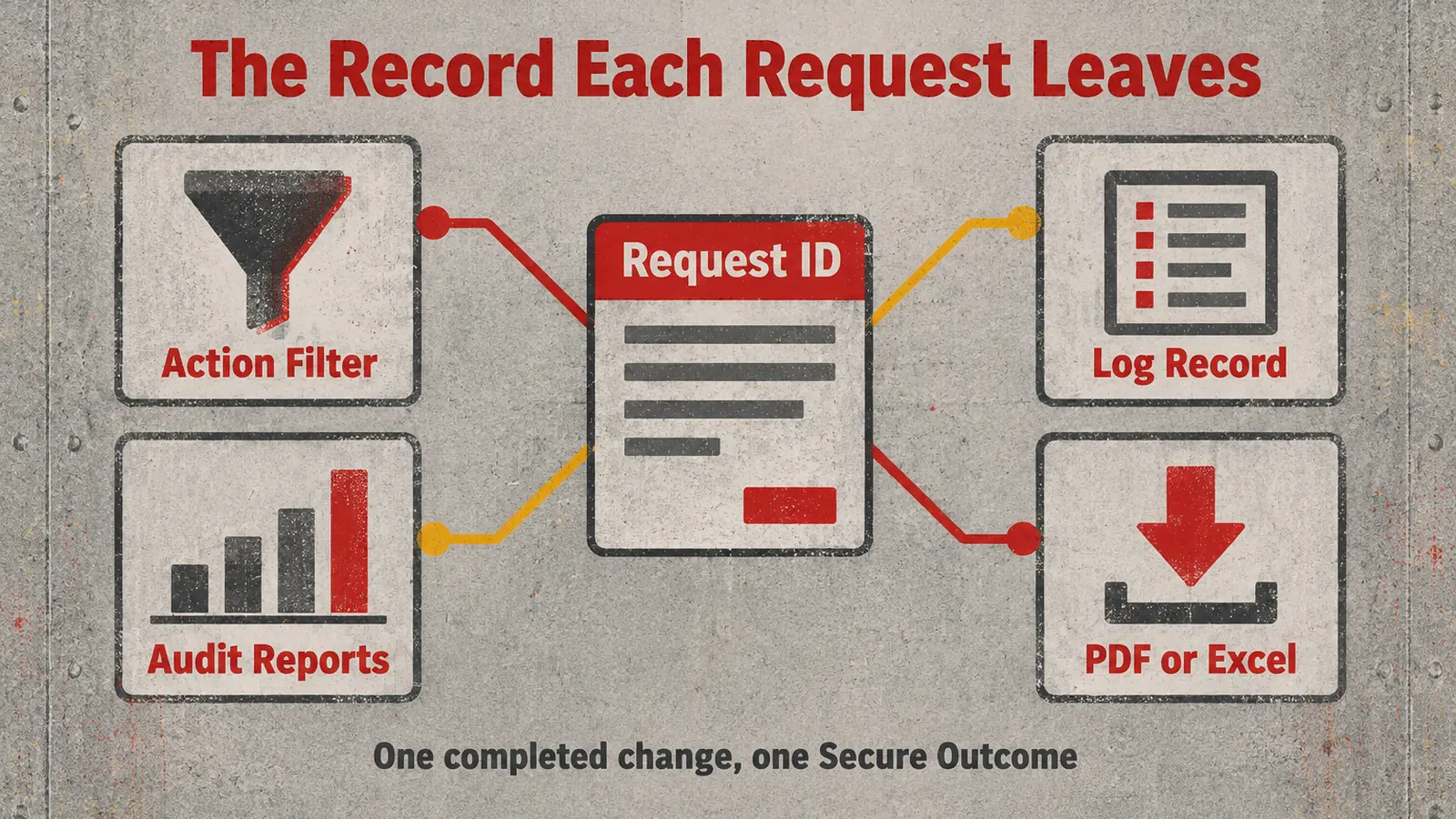 Each disable or enable request leaves a Request ID in Request History, an activity-log entry and, for disables, a line in the audit reports.
Request History is part of the Avatier web app, where reviewers filter and export the requests your assistant filed. As general practice, write each justification for a reader who was not in the conversation. For security documentation, see the Avatier Trust Center.
Getting started
Avabot chat and MCP require the current (.NET 10) Avatier server.
Under Pay Per Identity Action™, "One completed account disable = one Secure Outcome; failed attempts are never billed," and the same holds for each completed enable. The program is in invitation-only preview, and pricing is shared with qualified organizations. Getting started is free, Deployment Services are included, and there is a 45-day money-back guarantee.
For the action itself, see the Disable Account page, and for setup steps, see the Avatier MCP Server page. For the platform and the preview, see the Avatier Identity Anywhere 2027™ site. For password and MFA controls, see Credential Governance™. For the company, see avatier.com.
Microsoft Copilot Studio, Claude Code, OpenAI Codex and the other assistants named here are trademarks of their respective owners. No partnership with or endorsement by any third party is implied.
ABOUT THE AUTHOR

More from MCP & Identity Actions

Add or Remove Nested AD Groups from Copilot with Avatier MCP
Nest an Active Directory group inside another, or take it back out, from Copilot Studio, Claude Code or Codex. Avatier verifies you and files one recorded request per parent group through your approval workflow.

Move AD Users Between OUs from Copilot or Claude with Avatier MCP
Move an Active Directory user to another OU from Microsoft Copilot Studio, Claude Code or OpenAI Codex. Avatier verifies you, accepts only an existing OU, routes approval and stores the old OU.

What Can You Ask Avatier MCP? Identity Actions by Category
Avatier MCP Server gives your AI assistant 37 of 56 Identity Actions: unlock, reset a forgotten password, request access, rehire, disable an account, add group members. Each category, with example asks.