Account Expiration Dates: Set, Extend or Clear Them with Avatier
How an Active Directory account expiration date works, how to set, extend or clear one with a reason and an approval, and the Request ID and log entry Avatier keeps for each end-date request.

How an Active Directory account expiration date works, how to set, extend or clear one with a reason and an approval, and the Request ID and log entry Avatier keeps for each end-date request.
- An account expiration date sets the day a temporary account expires, matched to when the work ends, not to someone's memory.
- In Active Directory the date lives in accountExpires; Microsoft Learn says a value of 0 or 0x7FFFFFFFFFFFFFFF means the account never expires.
- Avatier Change Account Expiration sets a date up to five years ahead, or Never expire, with a justification on the record.
- Your Lifecycle Management approval workflow decides who approves, and workflow admins can upload a CSV batch on the web.
- Each request gets a Request ID in Request History and an activity-log entry; in Avabot and MCP it changes one person's main account.
An account expiration date is the day a person's account is set to expire, so the account of a contractor, intern, seasonal worker or fixed-term project member expires on schedule instead of when someone remembers. Avatier sets, extends or clears that date with Change Account Expiration: you pick the systems and a date, or Never expire, give a justification, and on the workflow path the change runs through your approval workflow with a Request ID.
This post stays on one account's end date and the evidence of each change. For the whole third-party program, see Contractor and Third-Party Access Governance. For end dates on groups, see AD Group Expiration. For a temporary pause and return, see Leave of Absence and Rehire.
How an account expiration date works in Active Directory
The details below are Microsoft's, quoted from Microsoft Learn, not product behavior. In Active Directory, the end date is stored in the accountExpires attribute, described as "The date when the account expires."
| Change | What Microsoft Learn says |
|---|---|
| Default for a new account | "When an account is created, the account is initially set to Never Expire." |
| Never expires | "A value of 0 or 0x7FFFFFFFFFFFFFFF (9223372036854775807) indicates that the account never expires." |
| Set a date | Set-ADAccountExpiration "sets the expiration time for a user, computer, or service account." |
| Set a period from now | With TimeSpan, "The account expires at the end of the time interval." |
| Clear a date | "When you clear the expiration date for an account, the account does not expire." |
One detail matters for anyone setting dates by hand. Microsoft Learn says that for the DateTime parameter, "When a time value is not specified, the time is assumed to 12:00:00 AM local time." Check whether the date you enter is the last working day or the first day without access.
The default is the reason end dates need a habit. A new account starts at Never Expire, so a temporary account has no end date unless someone sets one. Avatier's Group & User Self-Service page puts the practice in one line: "Set an account or group expiration when access is granted."
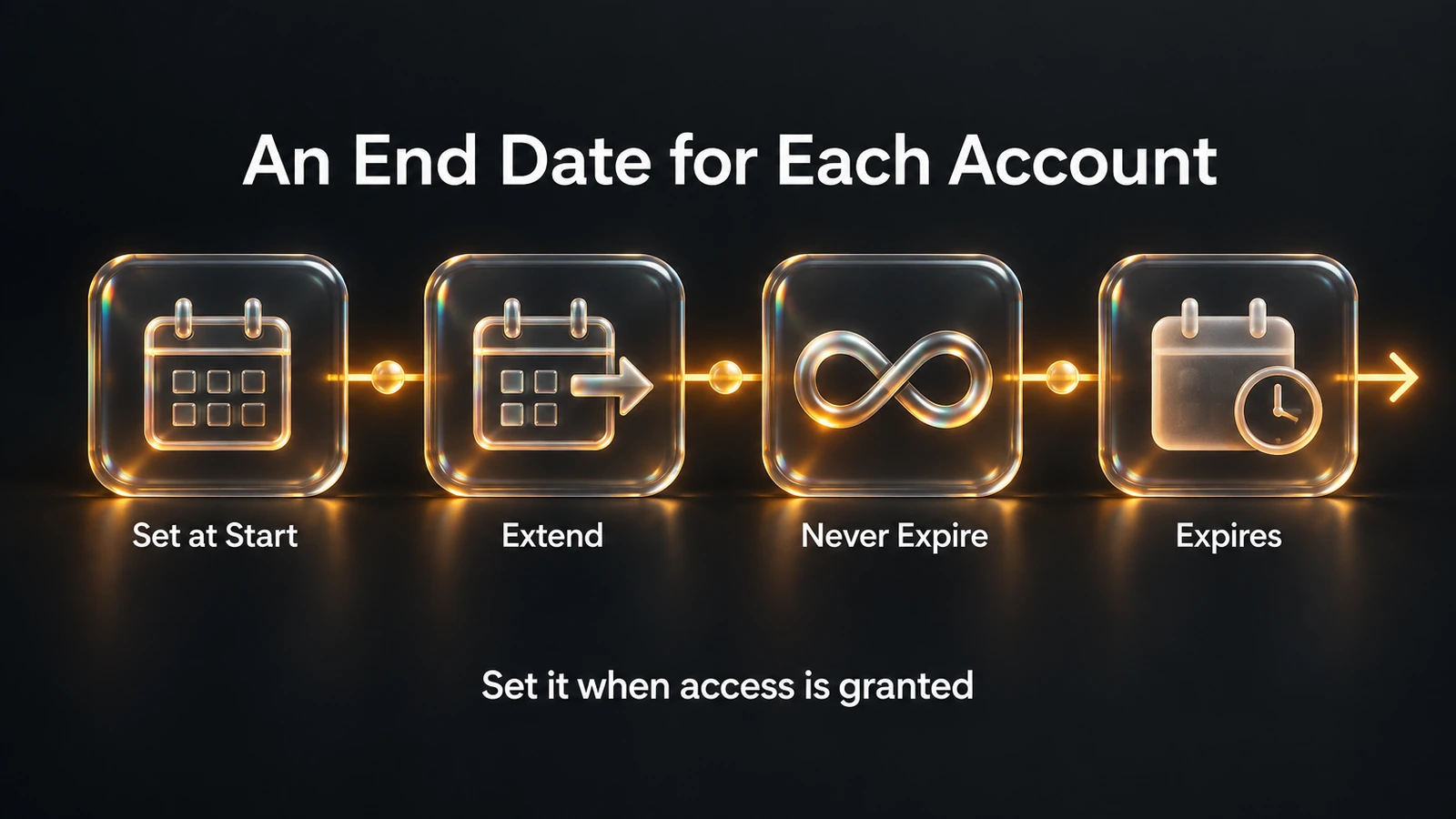
An end date is set when access is granted, can be extended or cleared with a reason, and ends the account's access on schedule.
A checklist for setting, extending or clearing an end date
The list below is general guidance, whatever tool applies the change.
- Set it at the grant. Give the account its end date when access is granted, matched to the contract, internship or project.
- Pick the right moment. Decide whether the date means the last working day or the first day without access.
- Extend with a reason. Treat an extension as a new decision: record why, such as a contract extension, and route it for approval.
- Clear dates sparingly. Reserve never-expire for accounts whose need has no end, and record the justification.
- Cover every system. Apply the date on each system where the person has an account that supports one.
- Keep the record. Keep who asked, who approved, the old and new date and the reason.
How Avatier Change Account Expiration works
Change Account Expiration is a Lifecycle & Access Governance action to "Set when a person's accounts expire, or make them never expire, with a justification on the record." The action page frames the goal plainly: "Temporary access needs an end date that matches the work, and a change to that date needs a reason."
On the web, it walks through these steps:
- Select the user. Pick the system and search for someone you're authorized to request for. Workflow admins are asked "Would you like to use workflow?"
- Give a justification. Enter the reason for the change.
- Pick the systems. Choose which of the person's systems to change.
- Set the date. Choose Expire now, Days/hours to expire, a date and time up to five years ahead, or Never expire.
- Submit. On the workflow path, the change is recorded in Request History with a Request ID and goes through your Lifecycle Management approval workflow; the new date is set once it is approved.
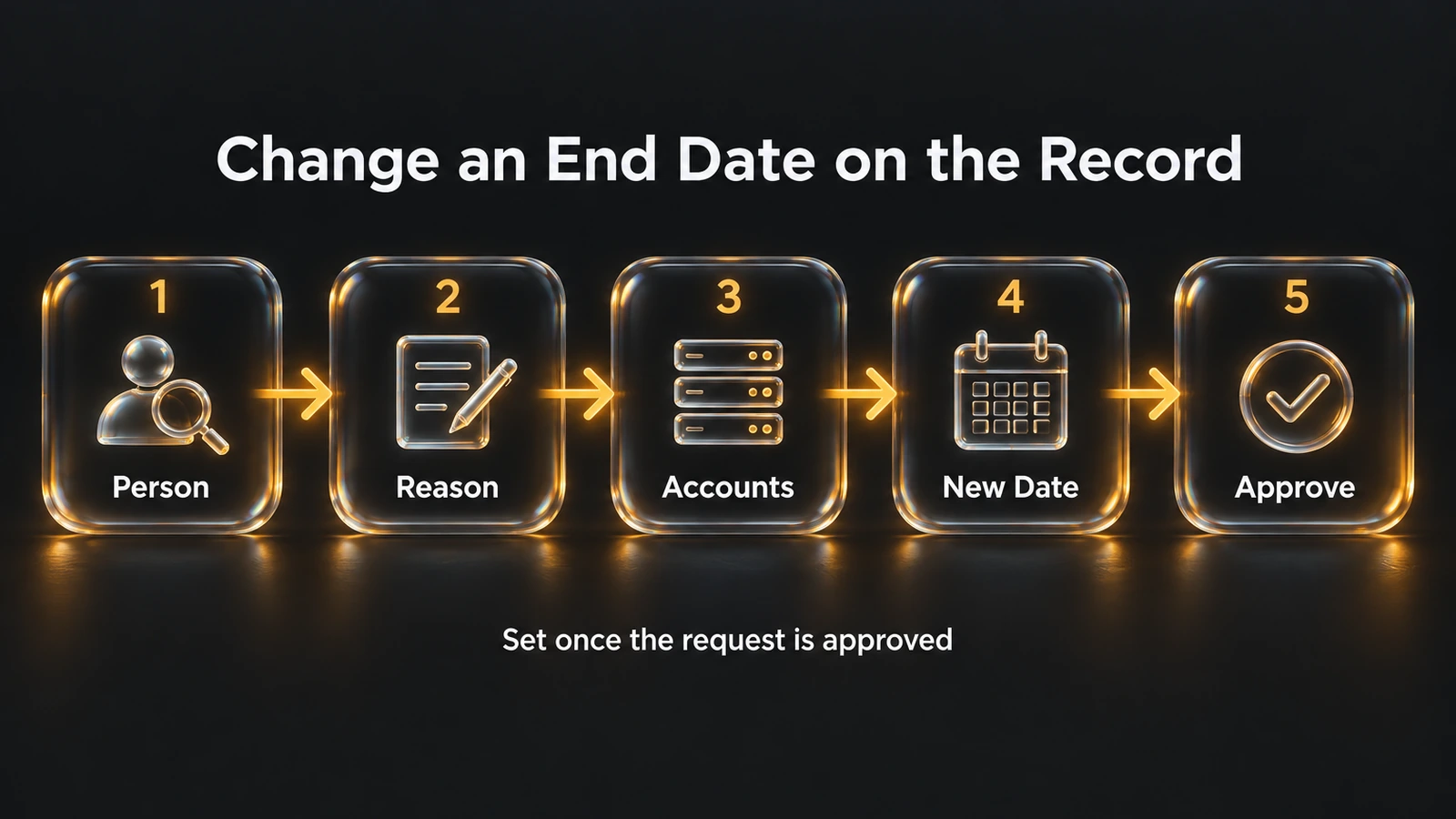
Pick the person, give a reason, choose the accounts and the new date, then the change waits for approval before it is set.
The action sets the end date on systems that support one: Active Directory, directly or through the on-premises agent, and SAP. An expiration change "completes when the new date is set, once the request is approved, on systems that support an account end date." Systems without one report a failure.
For many people at once, workflow admins use the Batch tab on the web: "upload a CSV of domain, user ID and expiration date (the first row is a header), review the list and run it." Batch changes "apply immediately with no approval, change each user's main account only, always set a date, and show a result for each user."
Account expiration is one of the account tasks in Group & User Self-Service, listed there as "Set end dates for contractors and temps." For the pillar, see Group & User Self-Service.
Changing an end date from Avabot or an AI assistant
Change Account Expiration is "Available on Web, Mobile, Teams, Avabot chat and MCP." In Avabot and MCP it "starts with identity verification in the conversation, with the methods your policy already allows." You then name the person, give a new date or say the account never expires, and give a justification.
The action page's illustrative request reads: "Set Riley Chen's account to expire on 31 March. Justification: contract extended." The scope is narrower than the web: "In Avabot chat and MCP, Change Account Expiration changes one person's main account only: there is no system choice and no batch." Your Lifecycle Management approval workflow still decides who approves.
The page lists the same guardrails as the Identity Actions page. The connector "only sends what the person actually said, and asks when something is missing," and Avatier acts as the signed-in user through "OAuth sign-in to your own tenant." Avabot chat and MCP require the current (.NET 10) Avatier server. For every action that runs from an assistant, see Identity Actions.
The evidence of who set each date
An end date that changed with no record leaves an auditor guessing. The action page names the manual problem: changing end dates by hand, system by system, "leaves no request, no approval and no record of who changed the date or why."
With Change Account Expiration, the evidence list on the page is:
- A Request ID in Request History (filter Change Account Expiration, exportable)
- An activity-log entry
- The request number, quoted in Avabot
- A result for each user, for a batch run
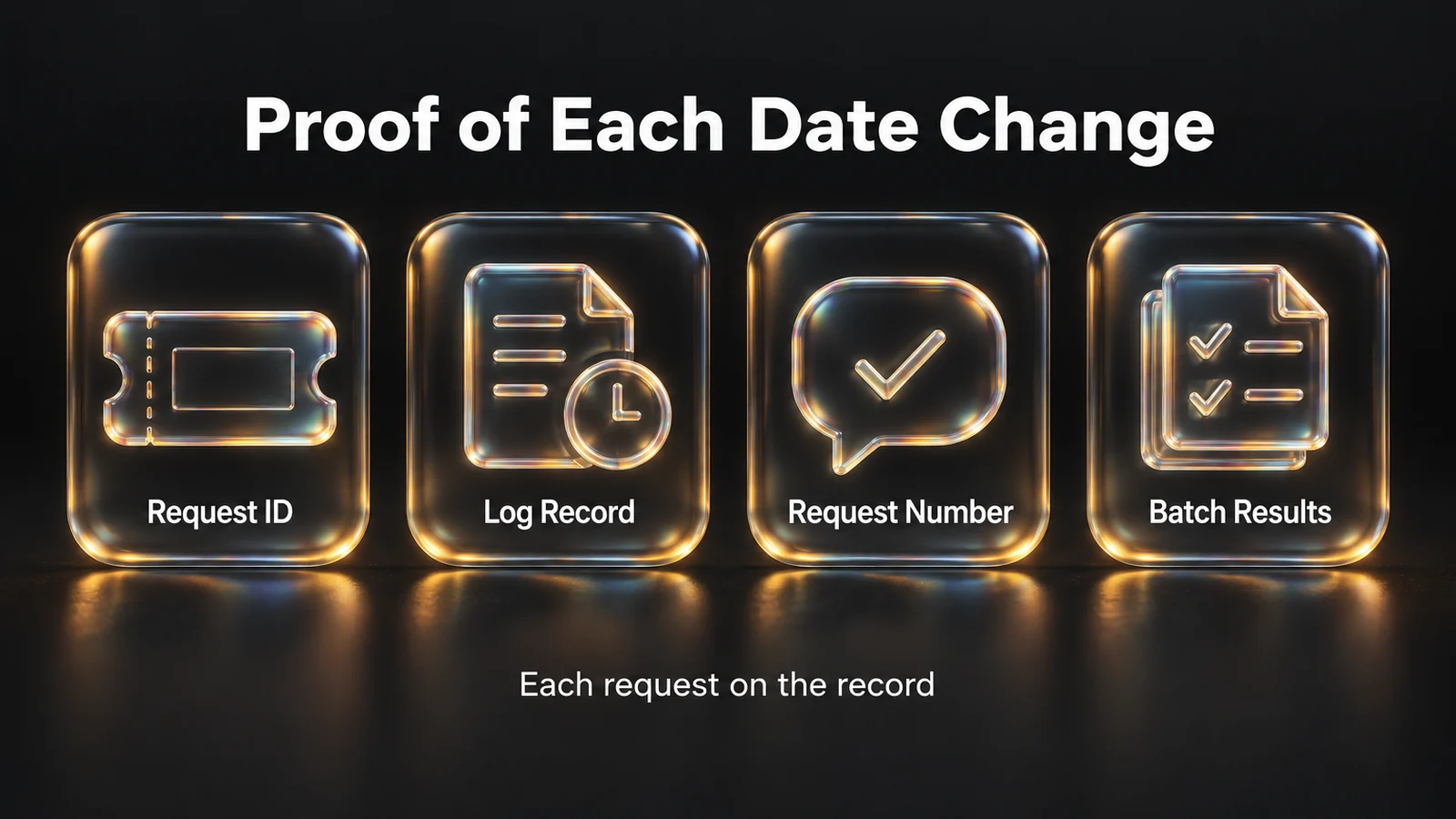
Each end-date request leaves a Request ID and a log record; Avabot quotes the request number, and a batch shows a result for each user.
Requests made from Avabot and MCP are recorded the same way: "Requests land in Request History, ready to review and export." One completed expiration change is one Secure Outcome. For security documentation, see the Avatier Trust Center.
Getting started
Under Pay Per Identity Action™, which is in invitation-only preview, each completed, verified action is one Secure Outcome, and attempts, failures and retries are never billed. Getting started is free, deployment services are included, and a 45-day money-back guarantee applies.
When a temporary engagement ends for good rather than on a date, see Automated Deprovisioning. For password, reset and MFA governance, see Credential Governance™. For the preview, see the Avatier Identity Anywhere 2027™ site; for the company, see avatier.com.
ABOUT THE AUTHOR

More from Lifecycle & Access Governance

Rename a User After a Name Change: How Avatier Does It
Which name fields change together when someone's name changes in Active Directory and Entra ID, why renaming by hand drifts, and how Avatier runs it as one recorded request.

Delegate Approval Authority While Away with Avatier Proxy My Authority
How to hand your access approvals to a named proxy for a set window, with a record of every change, and how to take an approver off workflows for good when their job changes.

Leave of Absence and Rehire: Suspend and Restore Access with Avatier
What to do with an employee's accounts during a leave of absence, and how to rehire someone without bringing back their old access. The decisions, and how Avatier runs both from HR.